
Visualization in Archicad
In recent years, there has been significant development in visualization.
First came real-time rendering with Twinmotion, Enscape and Lumion, which use game technology to generate images in seconds and videos in minutes – almost exclusively by using the computer’s graphics card. Then came AI visualization, which, through a combination of rough geometry and prompts, in no time creates photorealistic illustrations and makes it possible to test different ideas without having to model all scenarios in advance.
A good example of this is AI Visualizer, which is built into Archicad and rapidly create realistic visualizations of your BIM project – regardless of the project’s level of detail.
However, with both real-time rendering and AI visualization, it can be difficult to control the final results. With AI solutions, it is often challenging to control details and to create multiple illustrations of the same project from different angles or project stages. This is because the artificial intelligence invents a new reality each time you prompt it to generate an image.
The challenges with real-time rendering are that it can be difficult to control light and shadows precisly, since the software’s speed is based on pre-rendered elements that can communicate directly with the computer’s graphics card, effectively “cheating” its way to the result. This, however, makes it much faster than the alternatives.
The final solution is radiosity – the method we know from, for example, 3ds Max, Cinema4D and Vray. Radiosity is based on light from the project’s various light sources striking the geometry’s surfaces and bouncing back and forth between them to create fully realistic lighting and soft, natural shadows. This is also the method built into Archicad under the name Cineware, which is based on the rendering engine from Maxon’s Cinema 4D.
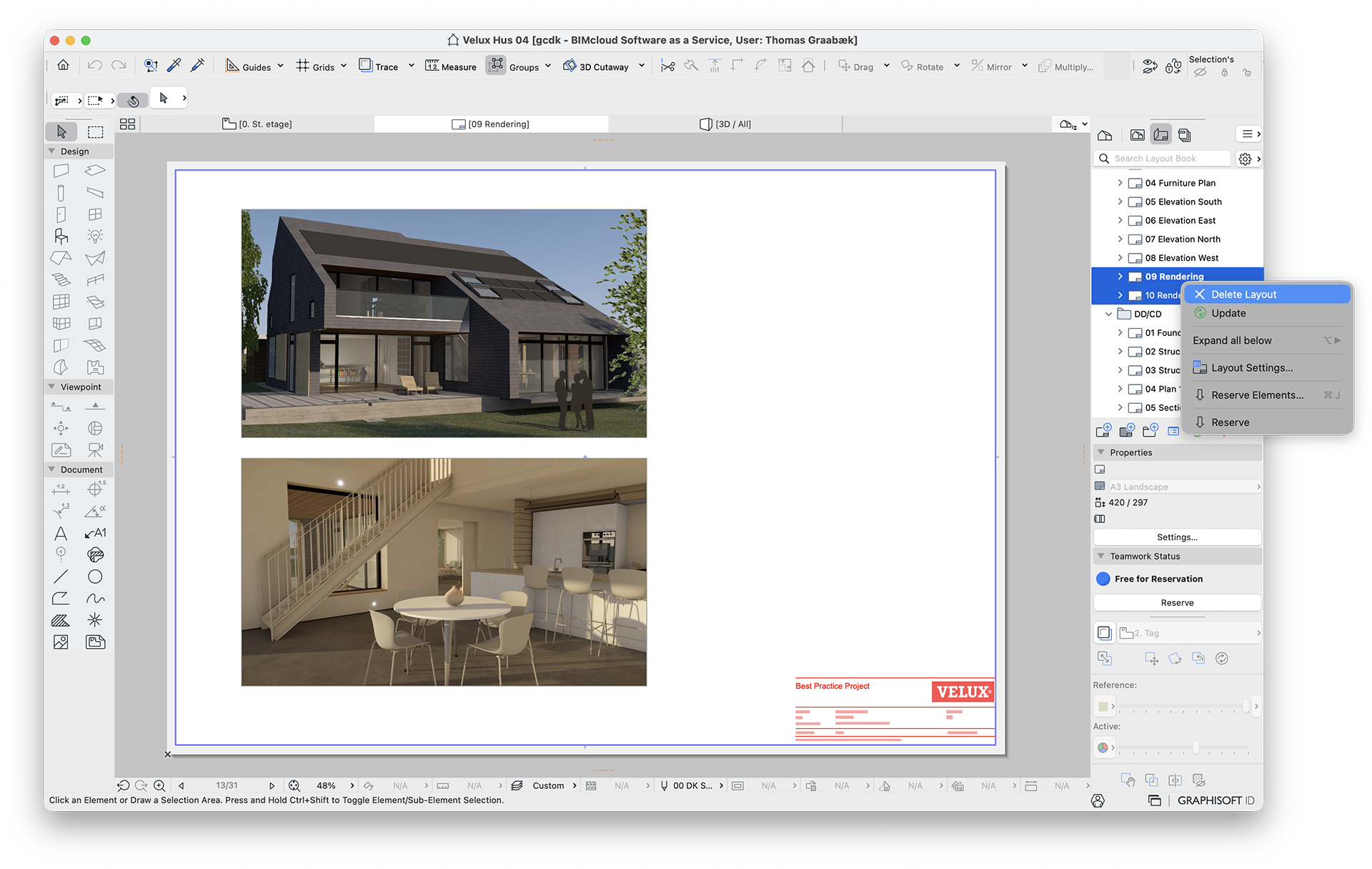
The downside of radiosity is that it is a relatively slow method that almost exclusively uses the computer’s main processor (CPU) rather than the graphics card. The advantage of Cineware in Archicad is that you can create visualizations directly in your BIM program and place them on the project’s Layouts – after which, hold on tight – Archicad automatically re-renders all visualizations every time you print or create a PDF of the project.
This means you can avoid manually having to synchronize our project with an external visualization program, executing each visualization, saving them as JPEGs on your computer, then placing them on the Layouts, and finally printing or exporting the project as a PDF. This saves time in the long run –especially when new employees take over a project and therefore do not have to go through a lengthy investigation process to identify where and how the visualizations were created, or whether they require post-processing in, for example, Photoshop before being brought back into the project.
Pro tip: If you would like to avoid all visualizations updating every time you open a Layout containing visualizations, print, or save PDFs, you can turn this off in the image’s Settings. This will require you to manually right-click the image or the Layout and select “Update,” as shown below.
VELUX Best Practice
We are currently working together with VELUX on a best practice guide that explores how building designers can best create construction projects using modern digital tools.
The purpose of the project – whose insights we look forward to sharing with you in the near future – is to develop a hands-on guide that demonstrates the optimal BIM-based project workflow for BIM-based building design. In addition to the design process itself, we also review how consultants can most easily perform LCA calculations, daylight analyses, and indoor climate simulations to achieve the best possible building.
As part of the development process, we have produced a series of visualizations of a construction project at sketch level. The visualizations were created with Cineware in Archicad and have not been post-processed elsewhere. Below, you can see some examples of the quality (which have been downscaled to 1,920 × 1,080 px and saved as JPEGs for web use).
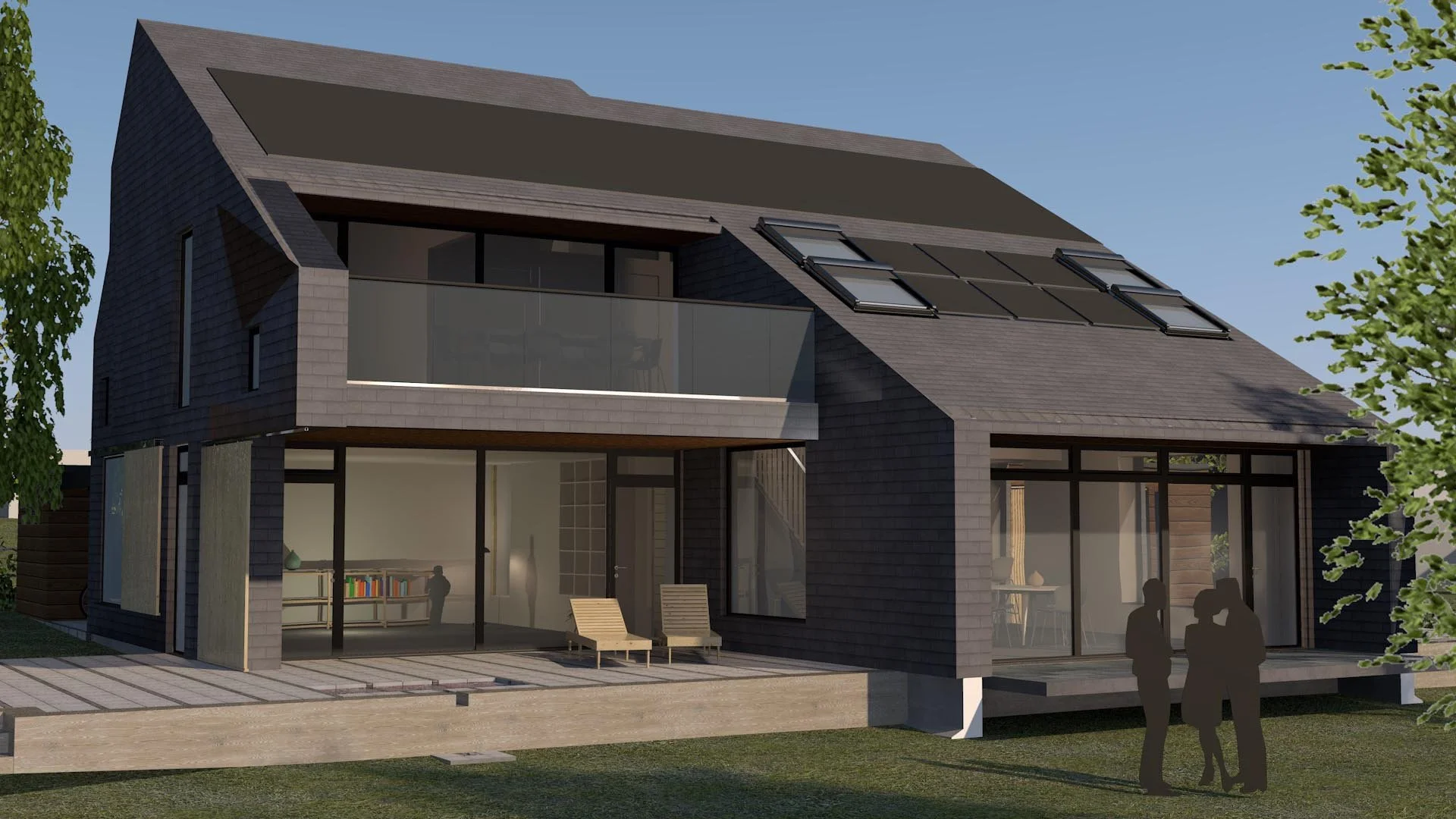
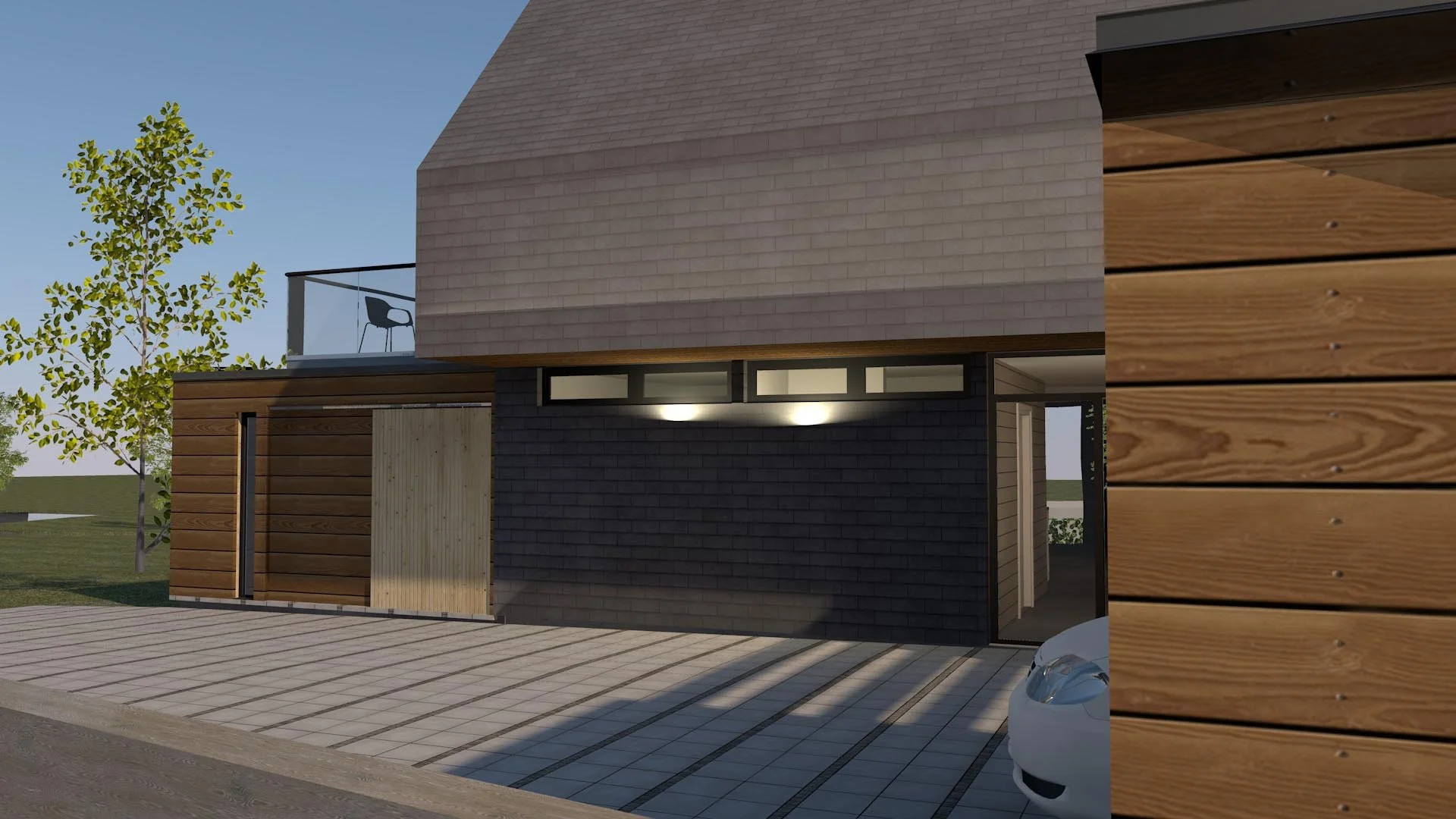
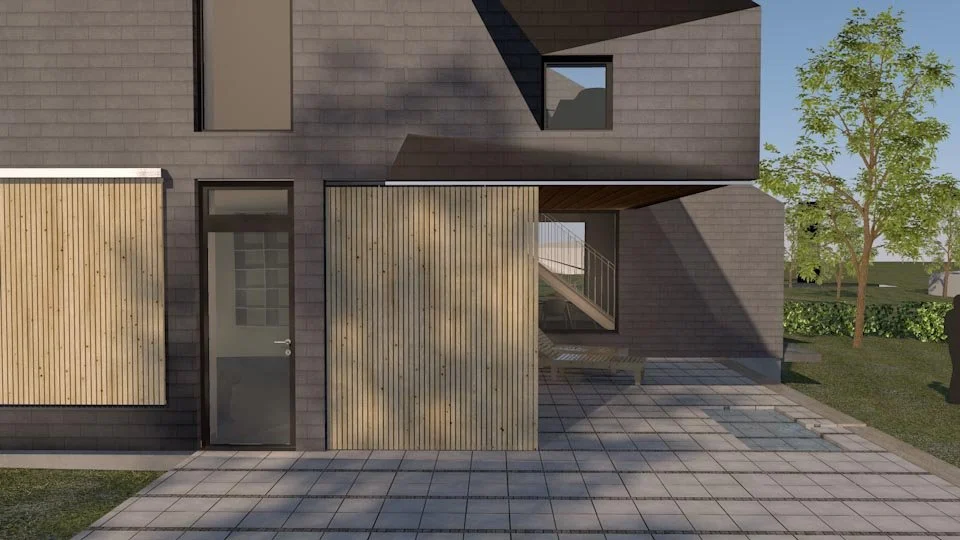
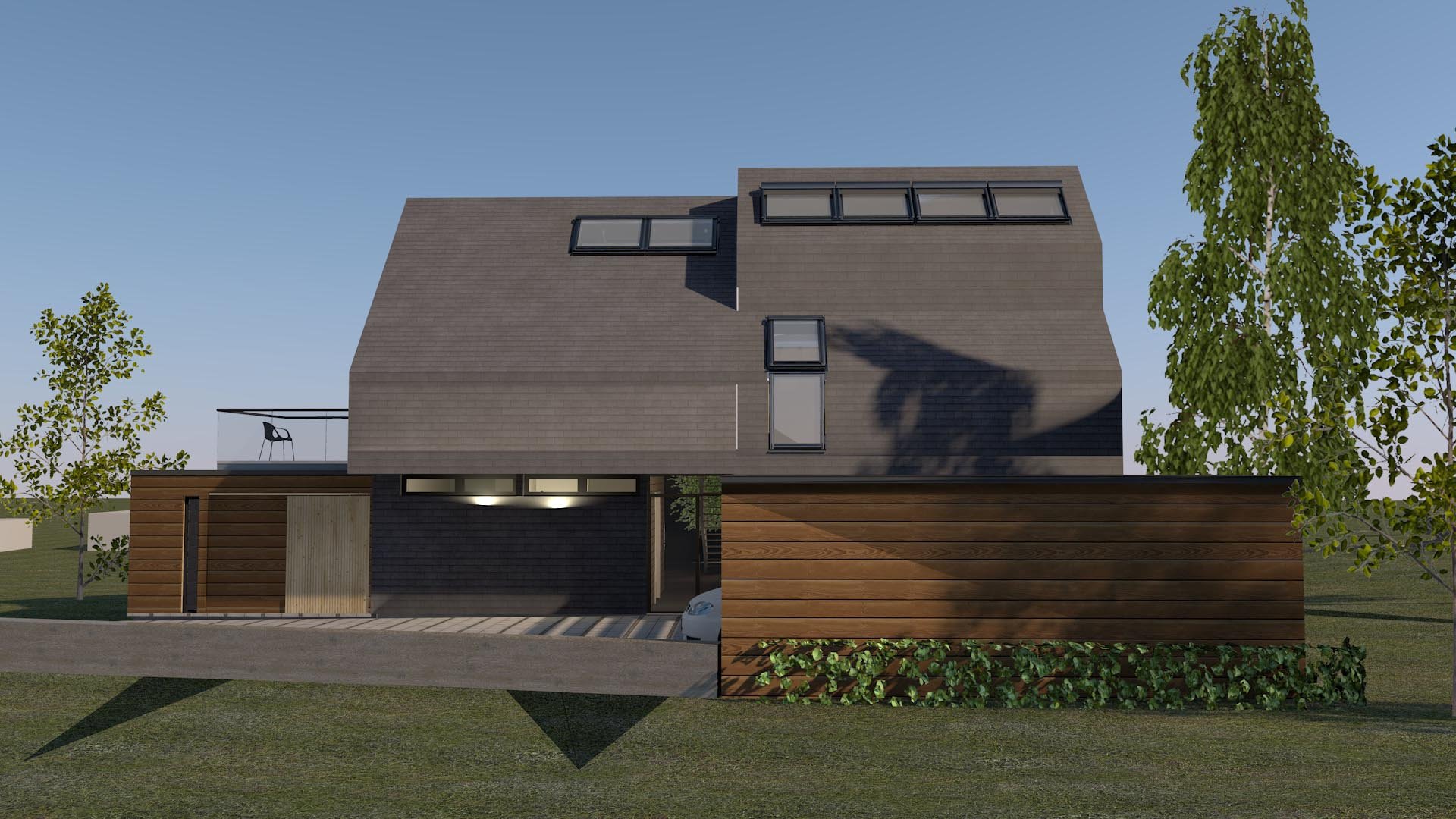
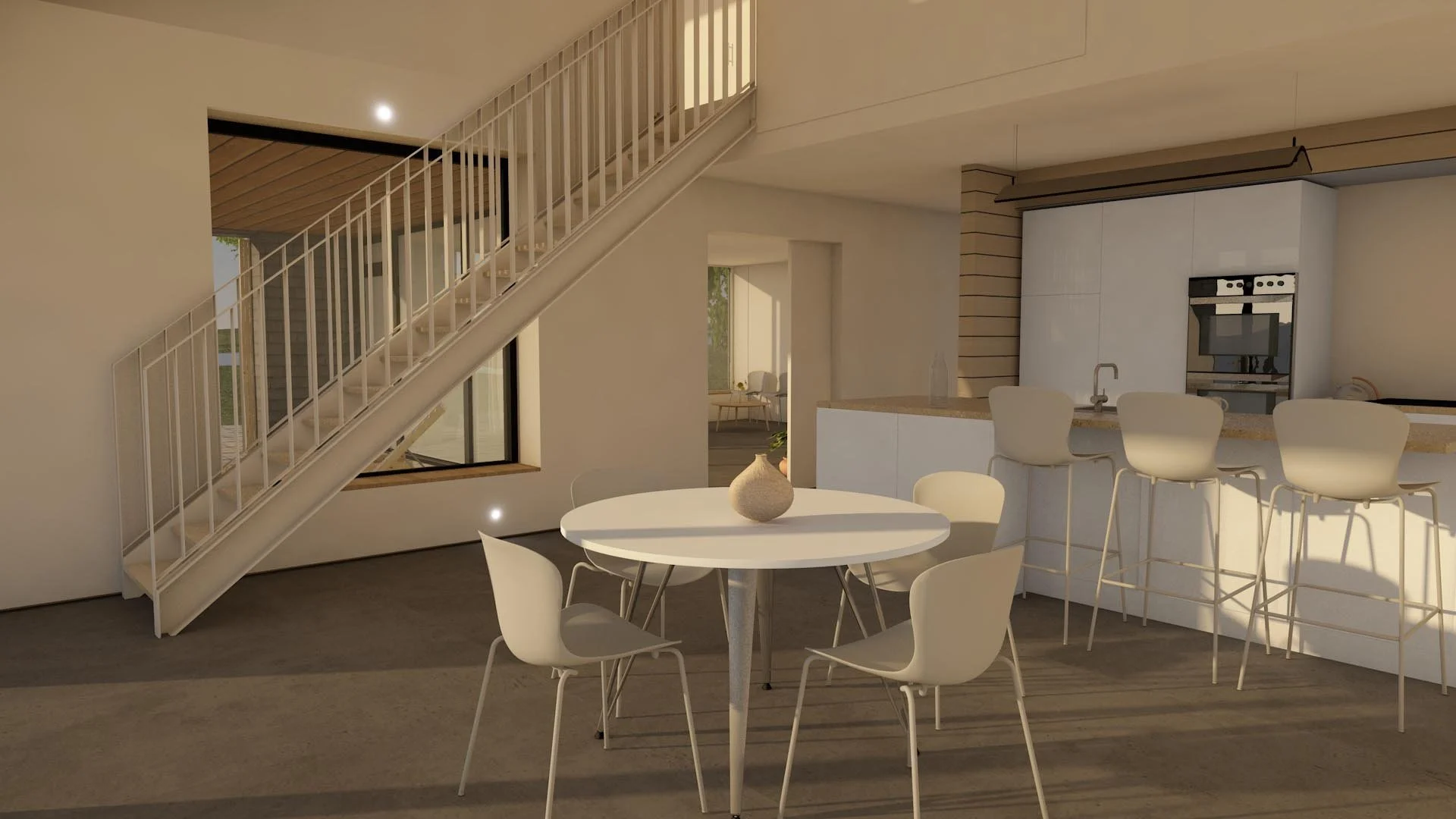
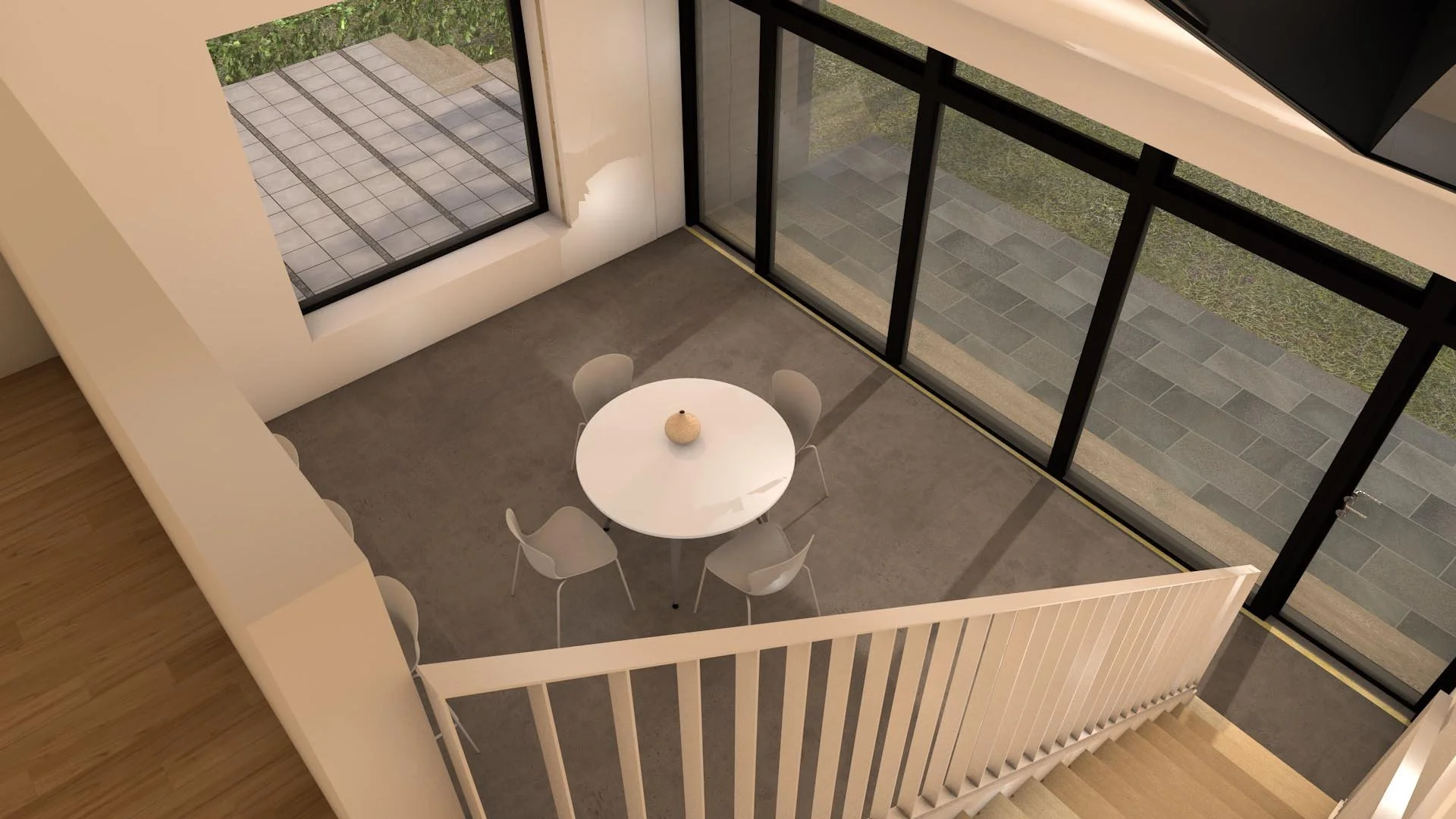
The above visualizations were created by our student assistant, who had no prior experience with Cineware and had to experiment her way to the result. The quality of renderings in Cineware roughly corresponds to that of 3ds Max and is probably slightly below V-Ray. However, it is always the user’s skills and experience that ultimately limit the quality of the final result.
We believe the above results are acceptable in every respect – both in terms of quality and expression – and are, to the best of our conviction, sufficient for the vast majority of projects. If you want more realistic renders, other programs may be the solution. Alternatively, it is possible to do post-processing in Photoshop, but remember to consider how much time this will take you when changes require updating the visualizations.
This also becomes one of the final arguments for BIM: if everything can be contained in a single file, shared among multiple team members in the “cloud,” you save enormous amounts of time – not because any single task takes especially long in another program, but because it would otherwise have to be done again and again, and you’ll have to explain to other project team members where and how each task should be carried out. With Archicad, everything is in one place, from the first sketch to the delivery of the “as built.” That is truly efficient!